Proxy hosts
A proxy host forwards requests for one or more domains to a service (the forward target) and applies TLS and protection on the way. For a step-by-step first setup see Your first proxy host.
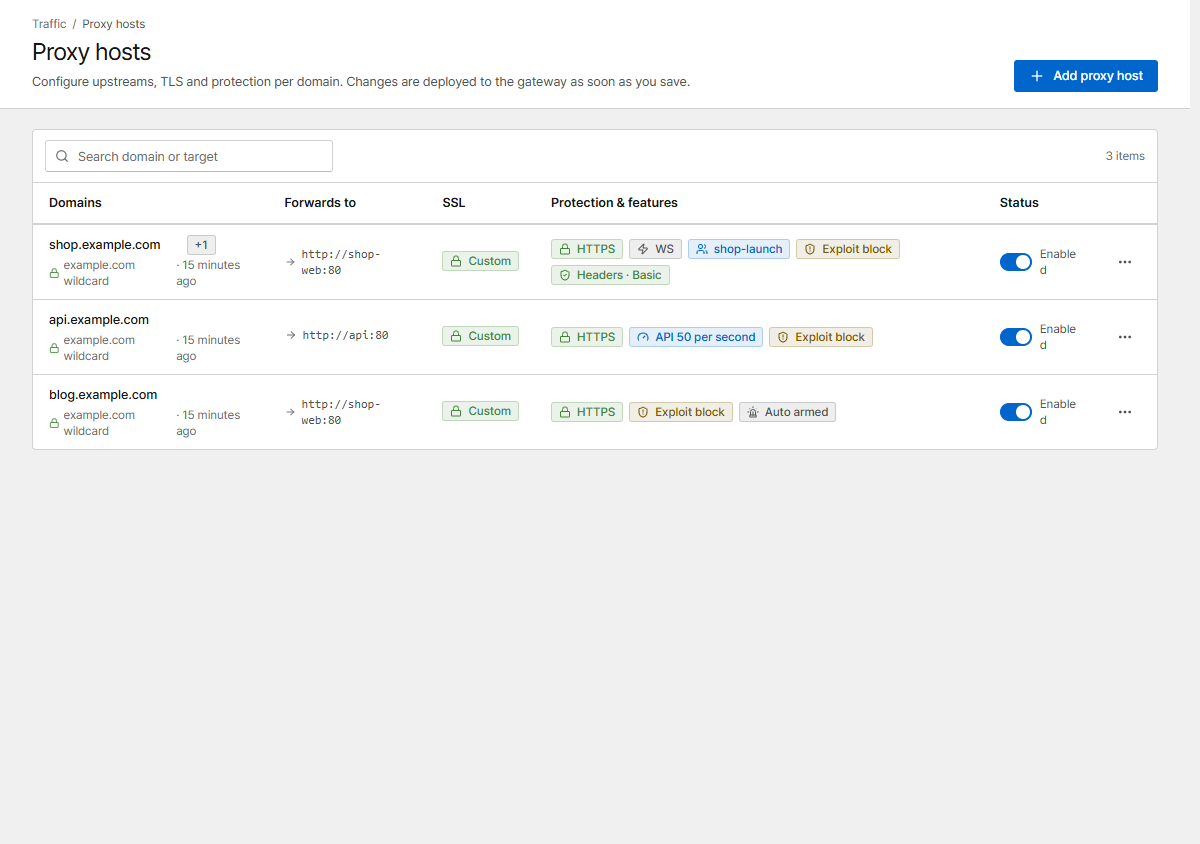
The list shows each host's target, certificate and the features that are on (HTTPS, WebSocket, access queue, rate limit, exploit blocking, security headers …). The switch in Status turns a host off without deleting it.
The form, section by section
Domains
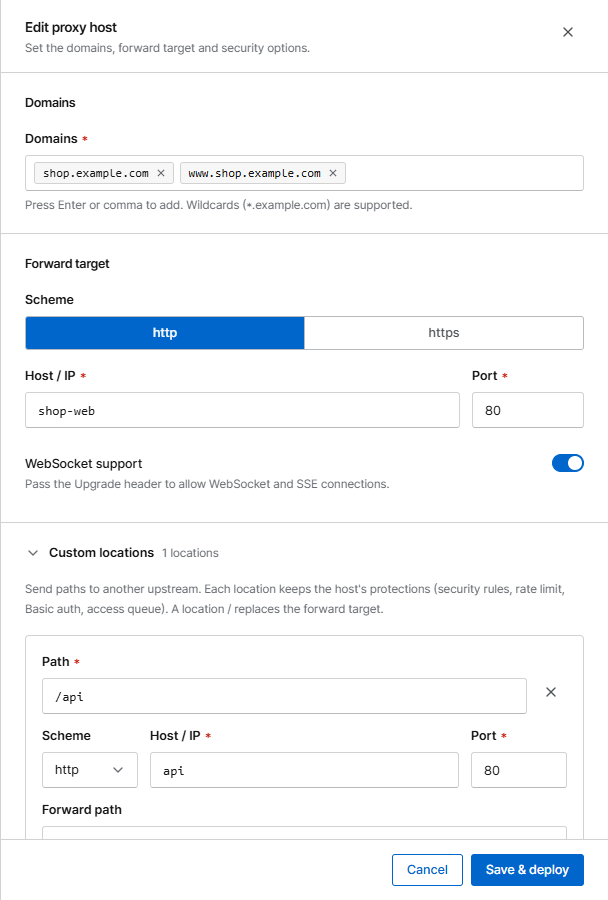
Type a domain and press Enter or a comma. Wildcards such as *.example.com work. A domain can
belong to only one proxy or redirection host.
Forward target
Scheme, Host / IP and Port of your service. Turn on WebSocket support for apps that use WebSockets or server-sent events.
Forward targets
| Target | Example | Notes |
|---|---|---|
| Another container | shop-web port 80 |
Corvus must share a Docker network with it: add that network to the corvus service |
| A private or public IP | 10.3.2.39 port 8084 |
|
| A service on the Docker host | 127.0.0.1 or localhost |
Inside the container these mean the Docker host, like in NPM; no host.docker.internal needed. The service must listen on an address the container can reach (0.0.0.0 or the Docker bridge), and the host firewall must allow Docker networks |
To reach services that listen only on the host's 127.0.0.1, run Corvus with
host networking.
Custom locations
Send paths such as /api to another service. See Custom locations.
TLS
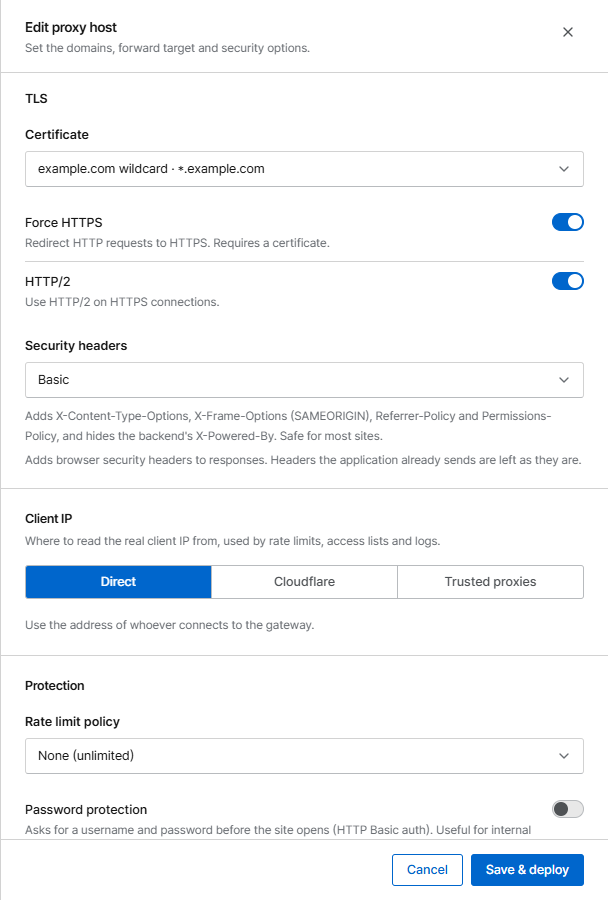
- Certificate: an existing certificate, Request a new certificate (Let's Encrypt), or None (HTTP only). See Certificates.
- Force HTTPS redirects HTTP to HTTPS and sends
Strict-Transport-Security. - HTTP/2 on HTTPS connections.
Client IP
Where the real visitor IP comes from. It is used by rules, bans, rate limits and logs.
| Option | Use when |
|---|---|
| Direct | Visitors connect straight to Corvus (default) |
| Cloudflare | The site is behind Cloudflare. CF-Connecting-IP is trusted only from Cloudflare's official ranges |
| Trusted proxies | Another proxy or load balancer is in front. Set its ranges and header on the Network page |
Warning
A wrong trusted-proxy setting lets clients fake their IP and get around rate limits and bans.
Protection
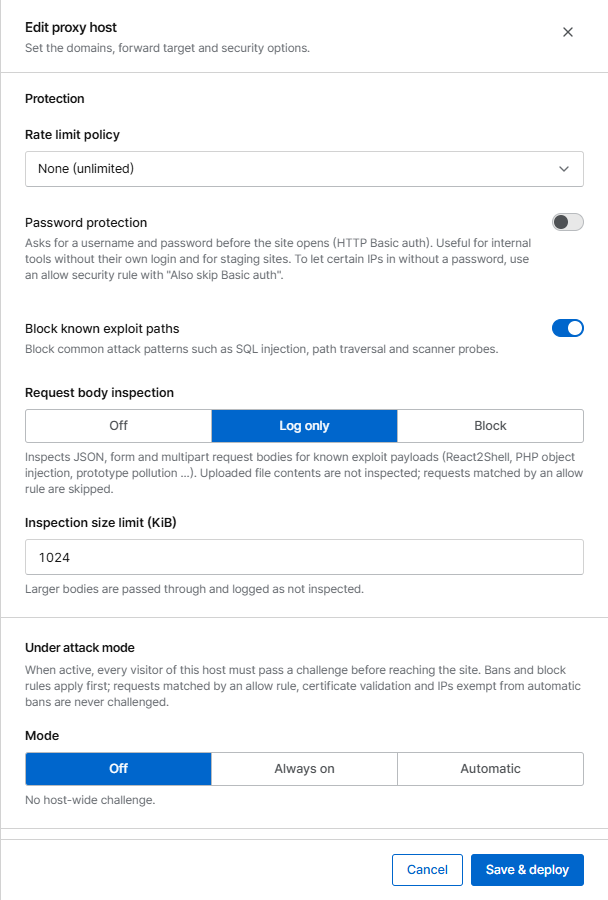
| Option | What it does |
|---|---|
| Rate limit policy | Limits requests per IP. See Bans & rate limits |
| Password protection | Asks for a username and password before the site opens (HTTP Basic auth). Good for staging sites and internal tools |
| Block known exploit paths | Blocks common attack patterns: SQL injection, path traversal, scanner probes. On by default |
| Request body inspection | Checks JSON, form and multipart bodies for known exploit payloads: Off, Log only or Block |
| Under attack mode | Makes every visitor pass a browser challenge. See Challenge & under attack |
| Security headers | Adds browser security headers (Basic or Strict). Headers your app already sends are never replaced |
Access queue
Attach an access queue and choose the Protected path (usually /).
Advanced
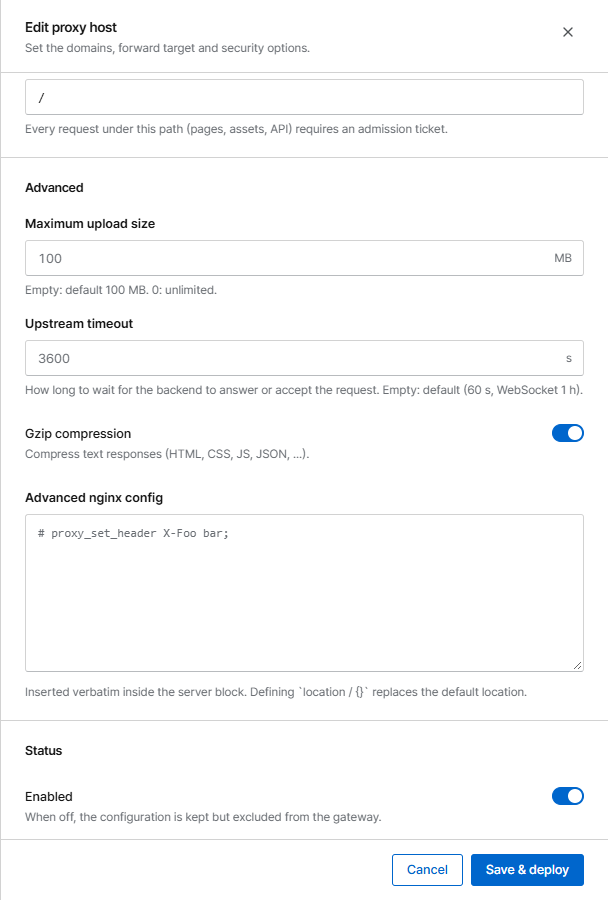
| Option | Default | Meaning |
|---|---|---|
| Max upload size | 100 MB | Largest request body. 0 = unlimited. Larger uploads get 413 |
| Upstream timeout | 60 s (1 h with WebSocket) | How long Corvus waits for your service to answer |
| Gzip compression | On | Compresses text responses (HTML, CSS, JS, JSON …). Responses that are already compressed pass unchanged |
| Advanced nginx config | empty | Nginx directives inserted into the host's server block (administrators only) |
Status
When Enabled is off, the host's settings are kept but it is removed from the gateway.
If you opened the console through a proxy host (for example https://corvus.example.com), that
host is marked Console in the list. Editing it shows a reminder, and disabling or deleting it
asks for confirmation first, because the console would no longer be reachable at that address. Port
9443 of the server (https://server-ip:9443) keeps working either way.
How changes are applied
Save & deploy creates a new configuration version, tests it with openresty -t and applies it
without dropping connections. If the test fails, nothing changes and the error is shown. Every
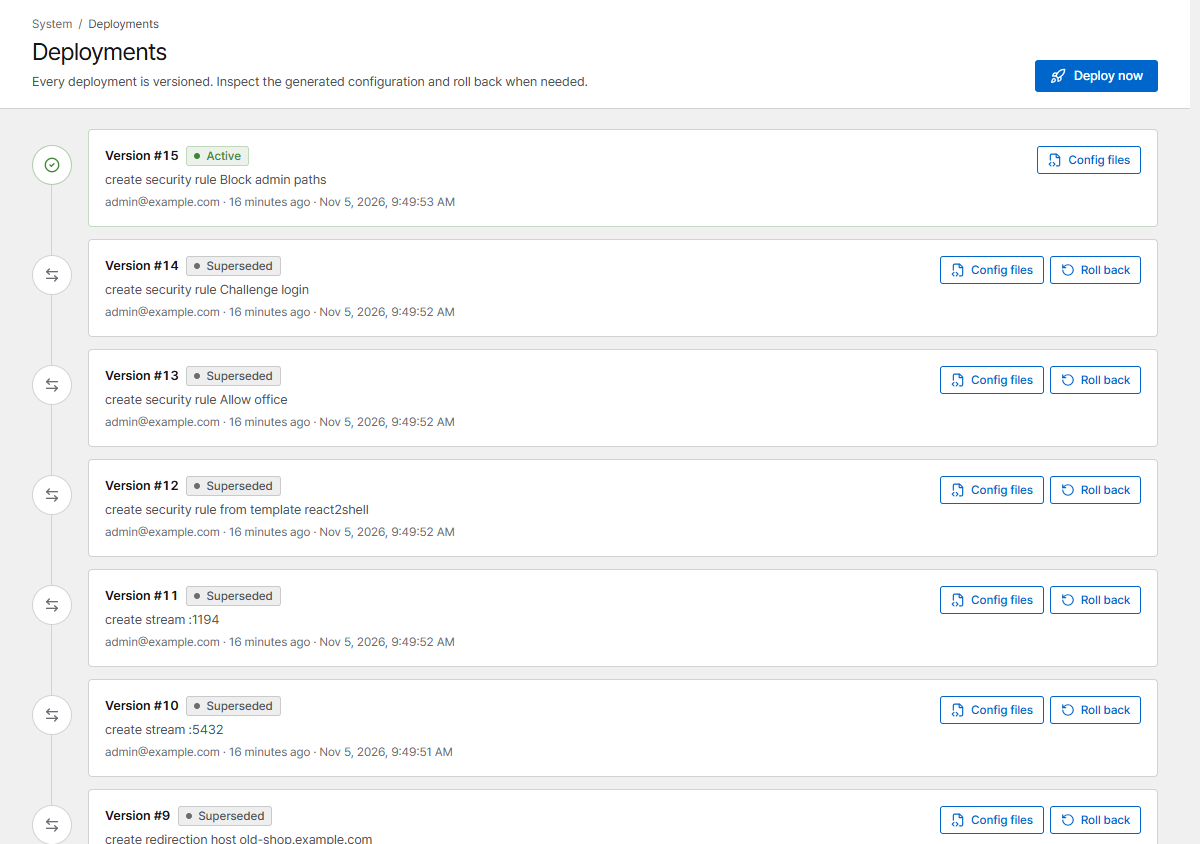
version is listed under Deployments, where you can inspect the generated files and roll back.