Your first proxy host
A proxy host sends requests for a domain (e.g. shop.example.com) to a service behind Corvus
(e.g. the container shop-web on port 80).
Before you start
- The domain's DNS (
A/AAAArecord) points at the Corvus server. - Corvus can reach the service. For another container, both must share a Docker network (see Forward targets).
Connect Corvus to your other containers
Create a shared network once:
Add it to Corvus (and the same networks: lines to your app's service, or start the app
with --network proxy):
services:
  corvus:
    image: 'ghcr.io/corvus-gateway/gateway:latest'
    restart: unless-stopped
    ports:
      - '80:80'
      - '443:443'
      - '9443:9443'
    volumes:
      - ./data:/data
    networks:
      - default
      - proxy

networks:
  proxy:
    external: true
Run docker compose up -d again. In the proxy host, use the container name as Host / IP
(e.g. shop-web) and the port the app listens on inside its container (not the published
one).
1. Add the host
Open Proxy hosts and click Add proxy host.
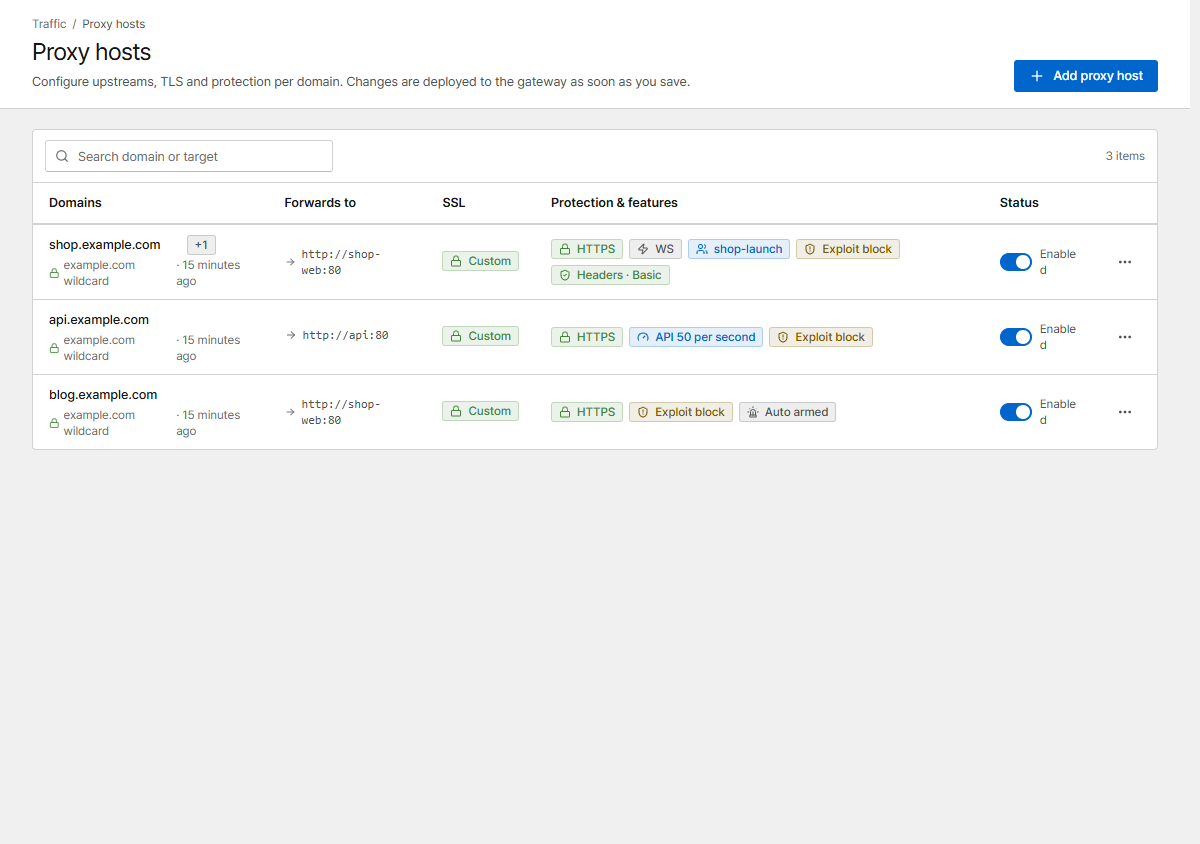
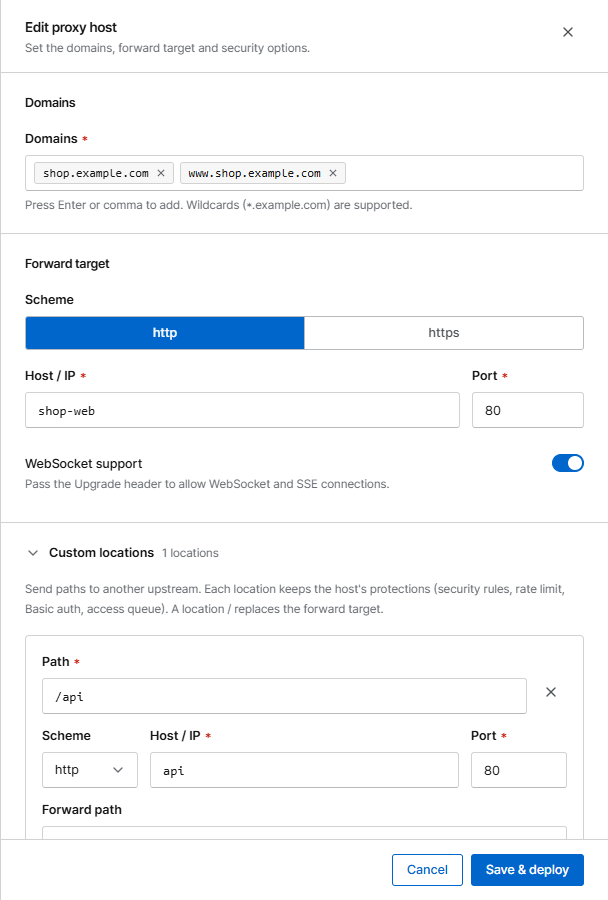
Fill in:
- Domains: type a domain and press Enter. Add as many as you need.
- Forward target: scheme (
httpin most cases), Host / IP and Port of your service. - Turn on WebSocket support if your app uses WebSockets or server-sent events.
2. Turn on HTTPS
In the TLS section choose Certificate → Request a new certificate (Let's Encrypt), enter your e-mail and agree to the terms. Turn on Force HTTPS so visitors are always redirected to HTTPS.
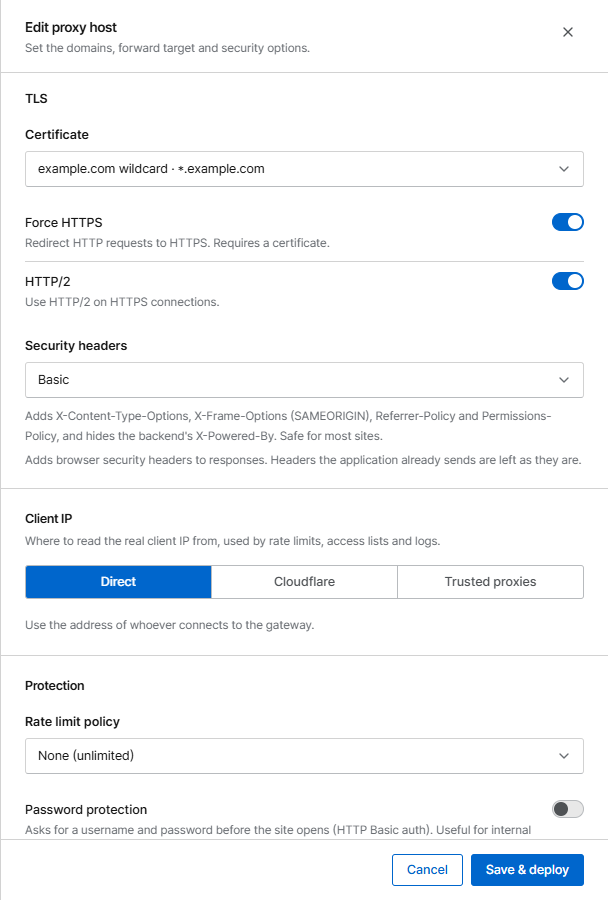
The host starts serving HTTP right away; HTTPS turns on by itself once the certificate is issued (usually within a minute). Wildcard domains need a DNS challenge.
3. Save & deploy
Click Save & deploy. Corvus writes a new configuration version, tests it and applies it without dropping connections. If anything is wrong, the error is shown and the previous configuration keeps running.
Open your domain in a browser. That's it: the host is already protected against known attack patterns (Block known exploit paths is on by default) and appears in the Traffic monitor.
What next?
- Route
/apito a different service: Custom locations - Restrict the admin area to your office: Security rules
- Prepare for a launch: Access queue
- Get notified when something goes wrong: Alerts