Install
Corvus runs as one container: the gateway, the admin console and the access-queue store are all inside it.
Requirements
- A Linux server (amd64 or arm64) with Docker and the Compose plugin
- Ports 80 and 443 free (the gateway), and 9443 for the admin console
- For Let's Encrypt certificates: your domain's DNS pointing at the server
1. Create docker-compose.yml
services:
  corvus:
    image: 'ghcr.io/corvus-gateway/gateway:latest'
    restart: unless-stopped
    ports:
      - '80:80'
      - '443:443'
      - '9443:9443'
    volumes:
      - ./data:/data
| Port | Purpose |
|---|---|
| 80 / 443 | Gateway: the traffic you proxy |
| 9443 | Admin console and API. Allow only trusted networks (firewall, or Network → Admin console allowed networks) |
All settings, certificates and history are stored in ./data.
2. Start it
3. Read the setup token
The first start prints a one-time token that proves you own the server:
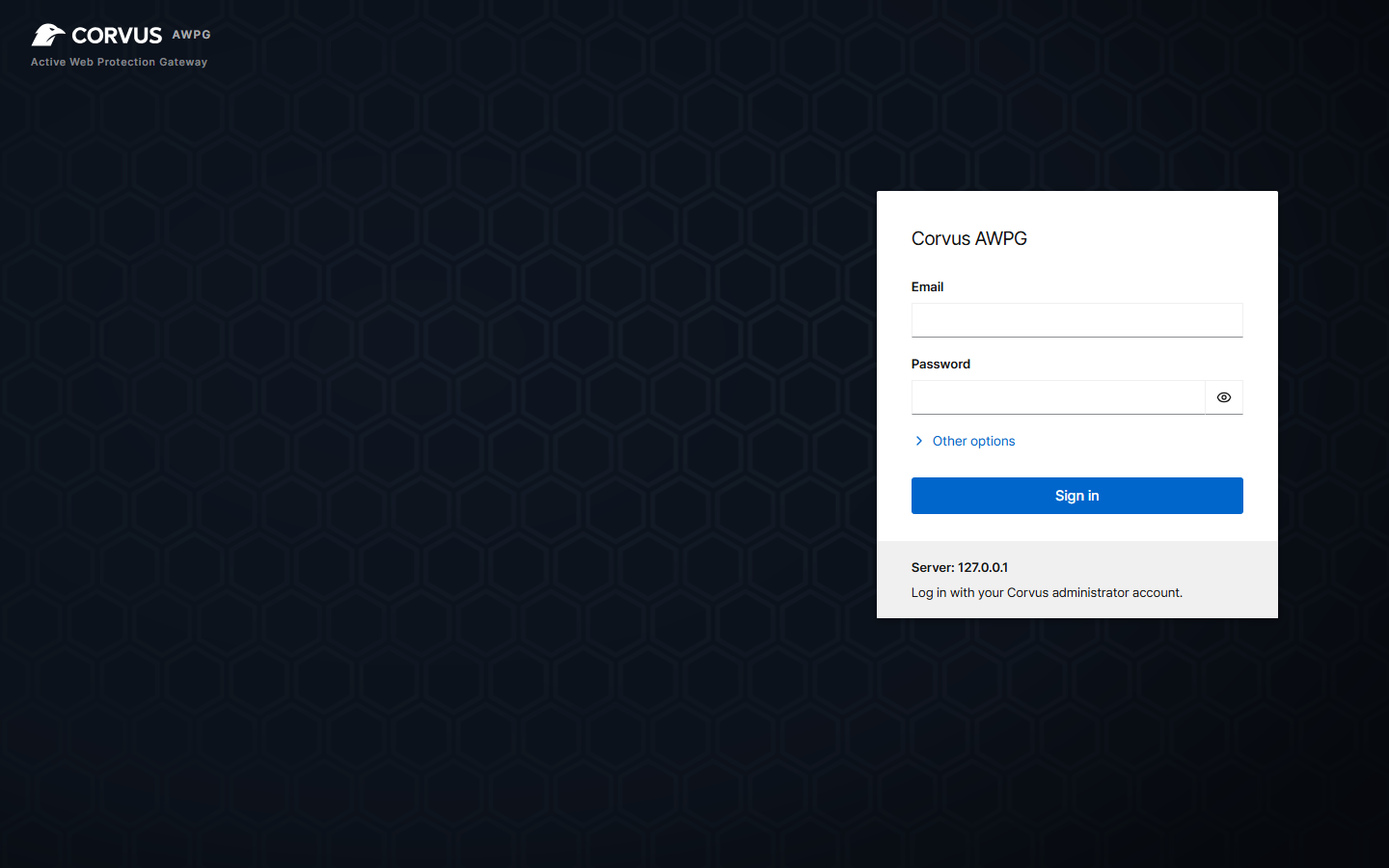
4. Create the administrator
Open https://<your-server>:9443 in a browser. The console uses a self-signed certificate at first,
so your browser shows a warning. Continue to the page, enter the setup token, your e-mail and a
password (at least 10 characters).
Next step
Add your first proxy host. It takes about a minute.
Run it with host networking (optional)
If the services you want to proxy listen only on the server's 127.0.0.1, or your previous NPM
setup used network_mode: host, replace ports: with host networking:
services:
  corvus:
    image: 'ghcr.io/corvus-gateway/gateway:latest'
    restart: unless-stopped
    network_mode: host
    volumes:
      - ./data:/data
If port 6379 is already used on the host, also set CORVUS_REDIS_PORT (see
Configuration).
Related
- Configuration: environment variables
- Hardened install: read-only root filesystem, no capabilities
- Upgrade