Migrate from Nginx Proxy Manager
Import from NPM copies your NPM setup into Corvus:
- proxy hosts (including custom locations), redirection hosts and streams
- certificates: Let's Encrypt and custom ones, including Cloudflare DNS tokens
- access lists: users and IP rules
It only reads NPM's files and database. NPM is not changed, so you can go back at any time.
Not imported: 404 hosts, and advanced configuration that uses NPM-specific variables. The preview lists everything that will be skipped.
1. Check which database NPM uses
Open NPM's docker-compose.yml:
| You see | NPM uses |
|---|---|
no DB_MYSQL_* / DB_POSTGRES_* variables, and data/database.sqlite exists |
SQLite (NPM's default) |
DB_MYSQL_HOST, DB_MYSQL_USER, … and usually a separate db service |
MySQL / MariaDB |
DB_POSTGRES_* |
PostgreSQL: not supported by the import; recreate the hosts in the console |
2. Mount NPM's folders into Corvus
Corvus reads certificate files from NPM's data and letsencrypt folders. Mount them read-only and
set CORVUS_IMPORT_DIR:
services:
  corvus:
    image: 'ghcr.io/corvus-gateway/gateway:latest'
    restart: unless-stopped
    ports:
      - '80:80'
      - '443:443'
      - '9443:9443'
    environment:
      CORVUS_IMPORT_DIR: /import
    volumes:
      - ./data:/data
      - /path/to/npm/data:/import/npm/data:ro
      - /path/to/npm/letsencrypt:/import/npm/letsencrypt:ro
Use the host paths of NPM's ./data and ./letsencrypt volumes. NPM and Corvus both need ports
80/443, so they can't run at the same time.
3. Import
cd /path/to/npm && docker compose down        # stop NPM (frees 80/443)
cd /path/to/corvus && docker compose up -d     # start Corvus with the mounts above
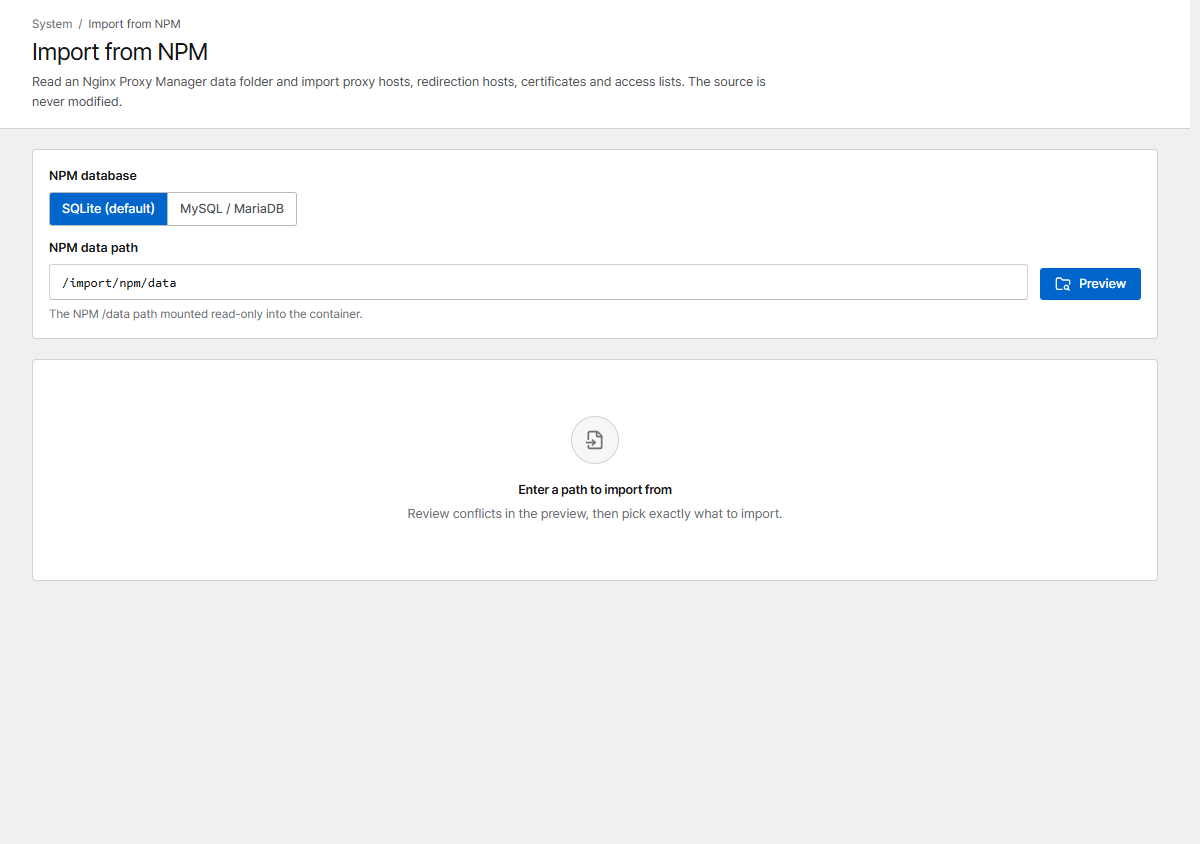
In the console open Import from NPM, keep SQLite, click Preview, choose what to import and click Import selected.
If the preview reports permission denied, make the files readable for Corvus (it runs as uid
10001):
Corvus has to reach NPM's database during the import, so stop only NPM's proxy service and keep its database running:
cd /path/to/npm && docker compose stop app     # the NPM service that owns 80/443 (often "app")
cd /path/to/corvus && docker compose up -d

# connect Corvus to NPM's Docker network for the import
docker network ls | grep -i npm                # e.g. npm_default
docker network connect npm_default $(docker compose ps -q corvus)
In Import from NPM choose MySQL / MariaDB and enter NPM's database settings: host = the
database service name (usually db), port 3306, and the values of DB_MYSQL_NAME,
DB_MYSQL_USER and DB_MYSQL_PASSWORD. The connection is read-only and the password is not
stored. Then Preview → Import selected.
When the import is done:
Imported items are deployed right away.
4. After the import
- Check the imported hosts, then remove
CORVUS_IMPORT_DIRand the two/importmounts and rundocker compose up -dagain. - Certificates keep renewing in Corvus. Hosts that used an unsupported DNS provider are imported without automatic renewal; the preview warns about them.
- Streams: on a bridge network, publish each stream port in
docker-compose.yml(see Streams). - Going back:
docker compose downin Corvus, thendocker compose up -din NPM.
NPM terms in Corvus
| NPM | Corvus |
|---|---|
| Proxy Hosts | Proxy hosts |
| Custom Locations | Custom locations in the proxy host form |
| Redirection Hosts | Redirection hosts |
| Streams | Streams |
| SSL Certificates | Certificates |
| Access Lists | Imported with their users and IP rules and attached to the same hosts. For new hosts use Password protection in the proxy host form, and security rules for IP restrictions |
| Advanced (custom Nginx configuration) | Advanced → Advanced nginx config |
| Settings → Default Site | Unknown hosts under Block & error pages: 404 and Congratulations become Not found page (404), No Response (444) and Redirect are imported; a custom HTML page is not |