Alerts
Corvus watches for problems and attacks and notifies your team chat.
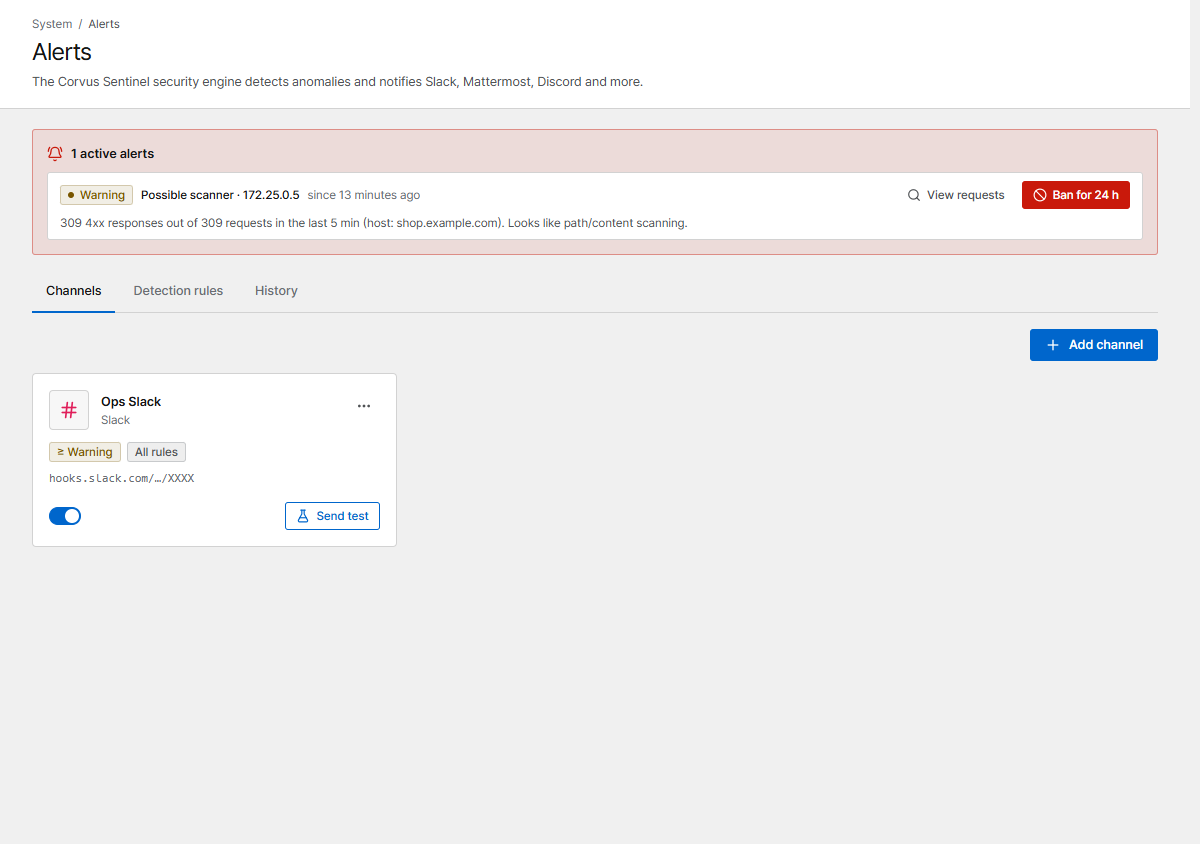
1. Add a channel
Open Alerts → Channels → Add channel and pick the type:
| Type | What you need |
|---|---|
| Slack | Slack app → enable Incoming Webhooks → pick a channel → copy the Webhook URL |
| Mattermost | Integrations → add an Incoming Webhook → copy the URL |
| Discord | Channel settings → Integrations → Webhooks → New Webhook → copy the URL |
| Microsoft Teams | Channel → Workflows → "Post to a channel when a webhook request is received" → copy the URL |
| Telegram | Bot token from @BotFather, and the chat_id of the chat you invited the bot to |
| Webhook | Any URL that accepts JSON POST. With a secret, requests carry an HMAC signature (X-Corvus-Signature) |
Choose the Minimum severity and, if you like, only some rules. Click Send test to check the connection.
2. Detection rules
Detection rules lists what Corvus watches. Each rule can be turned off and has its own threshold.
| Rule | Fires when |
|---|---|
| 5xx error rate | A host's share of 5xx responses exceeds the threshold |
| Latency (p95) | A host's p95 response time exceeds the threshold |
| Traffic spike | Requests per second jump to a multiple of the 1-hour average |
| Rate-limit surge | Many requests of a host are rate-limited |
| Exploit attempts | Many attack patterns are detected or blocked on a host |
| Security events | Many security-rule and body-inspection detections on a host |
| Repeated attack source | One IP triggers detections again and again (the alert shows the IP; Ban for 24 h is one click) |
| Possible scanner | One IP gets many 4xx responses in a short time |
| Access queue backlog | The number of waiting visitors reaches the threshold |
| Cache DB disconnected | The access-queue store can't be reached |
| Certificate expiring / issuance failed | A certificate expires soon or its renewal failed |
| Deployment failed | The gateway rejected a configuration |
| Admin login failures | Many failed sign-ins to the console |
| Under attack | Under attack mode turned on or off automatically |
Global settings: how often to repeat while a problem persists, whether to send a message when it clears, the alert language, and the Console URL used for links in messages.
History
History keeps every alert with its state (Firing, Resolved) and delivery result. Active alerts are also shown at the top of the dashboard.